# kima-hub
[](https://hub.docker.com/r/chevron7locked/kima)
[](https://github.com/Chevron7Locked/kima-hub/releases)
[](https://www.gnu.org/licenses/gpl-3.0)
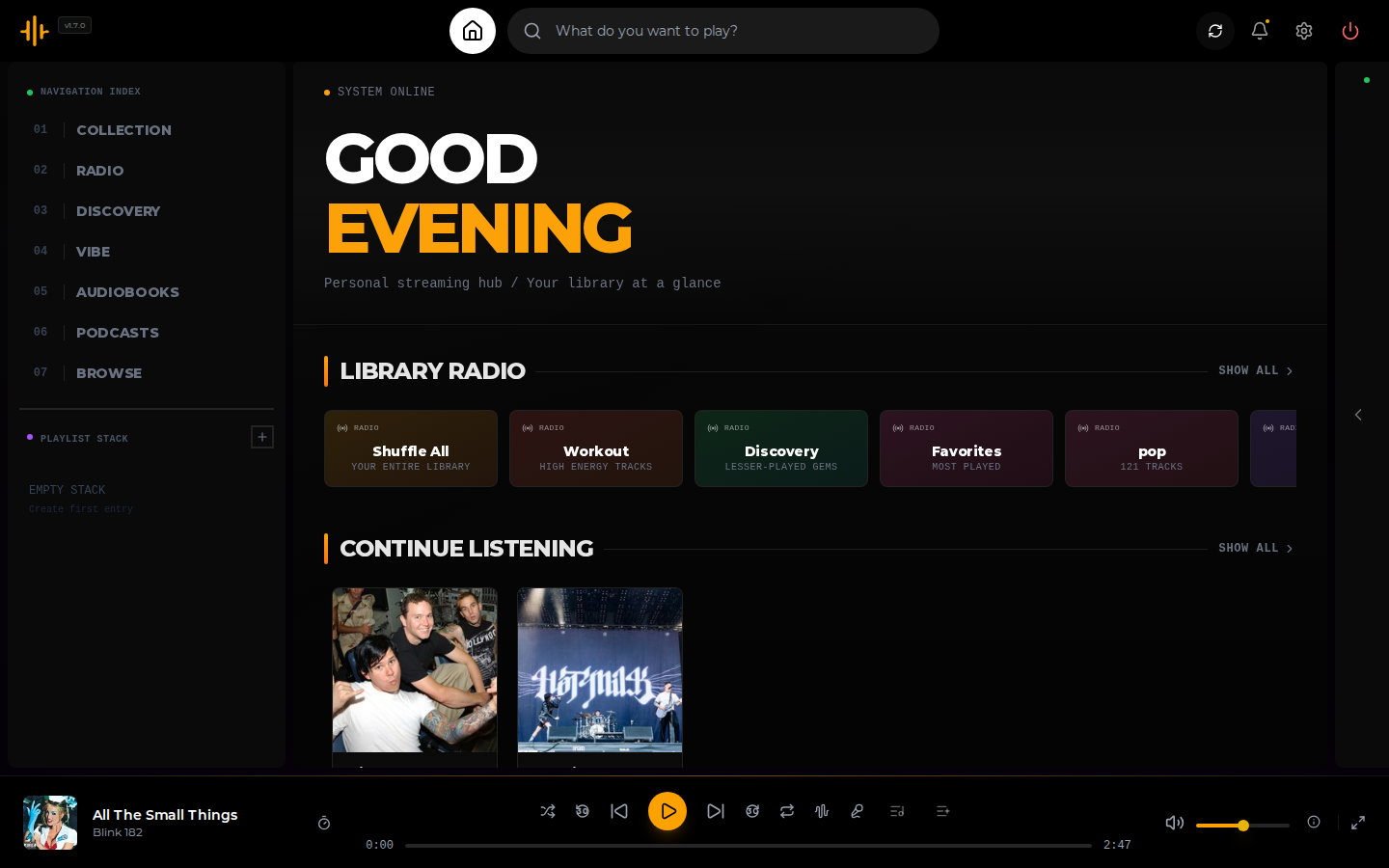
A self-hosted, on-demand audio streaming platform that brings the Spotify experience to your personal music library.
Kima is built for music lovers who want the convenience of streaming services without sacrificing ownership of their library. Point it at your music collection, and Kima handles the rest: artist discovery, personalized playlists, podcast subscriptions, and seamless integration with tools you already use like Lidarr and Audiobookshelf.
---
## A Note on Native Apps
Once the core experience is solid and properly tested, a native mobile app (likely React Native) is on the roadmap. The PWA works great for most cases for now.
Thanks for your patience while I work through this.
---
## Table of Contents
- [Features](#features)
- [The Vibe System](#the-vibe-system)
- [Playlist Import](#playlist-import)
- [Mobile Support](#mobile-support)
- [Quick Start](#quick-start)
- [Configuration](#configuration)
- [CLAP Audio Analysis](#clap-audio-analysis)
- [GPU Acceleration](#gpu-acceleration)
- [Integrations](#integrations)
- [Native Apps (Subsonic)](#native-apps-subsonic)
- [Using Kima](#using-kima)
- [Using the Vibe System](#using-the-vibe-system)
- [Administration](#administration)
- [Architecture](#architecture)
- [Roadmap](#roadmap)
- [License](#license)
- [Acknowledgments](#acknowledgments)
---
## Features
### Your Music, Your Way
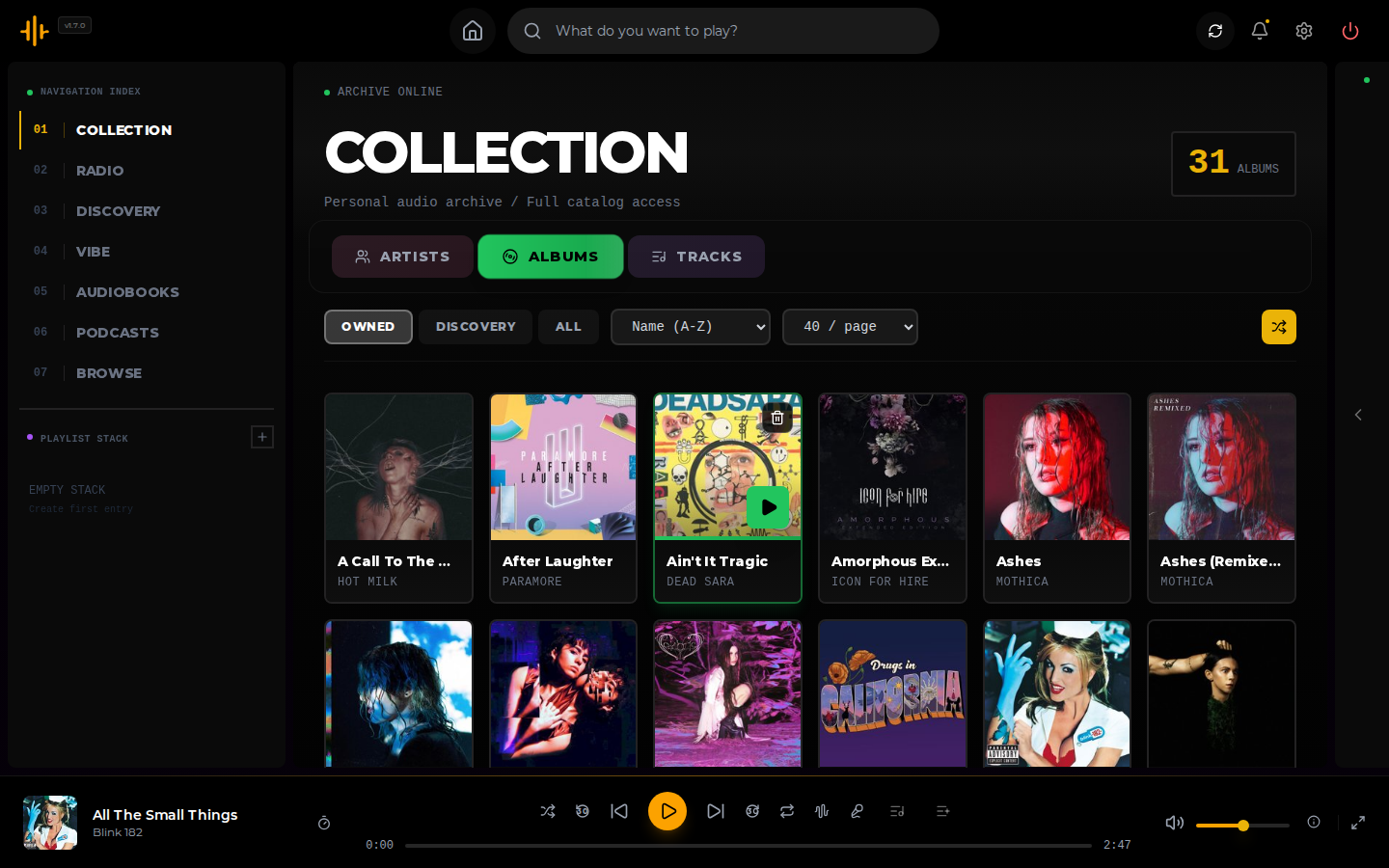
- **Stream your library** - FLAC, MP3, AAC, OGG, and other common formats work out of the box
- **Automatic cataloging** - Kima scans your library and enriches it with metadata from MusicBrainz and Last.fm, including ISRC codes and genre tags
- **Audio transcoding** - Stream at original quality or transcode on-the-fly (320kbps, 192kbps, or 128kbps)
- **Lyrics** - Displays embedded lyrics or fetches them automatically from LRCLIB. Timed lyrics get line-by-line sync during playback; untimed lyrics display as static text. Coverage is good for major artists but varies for niche or independent music\*
- **Ultra-wide support** - Library grid scales up to 8 columns on large displays
### Discovery and Playlists
- **Made For You mixes** - Programmatically generated playlists based on your library:
- Era mixes (Your 90s, Your 2000s, etc.)
- Genre mixes
- Top tracks
- Rediscover forgotten favorites
- Similar artist recommendations
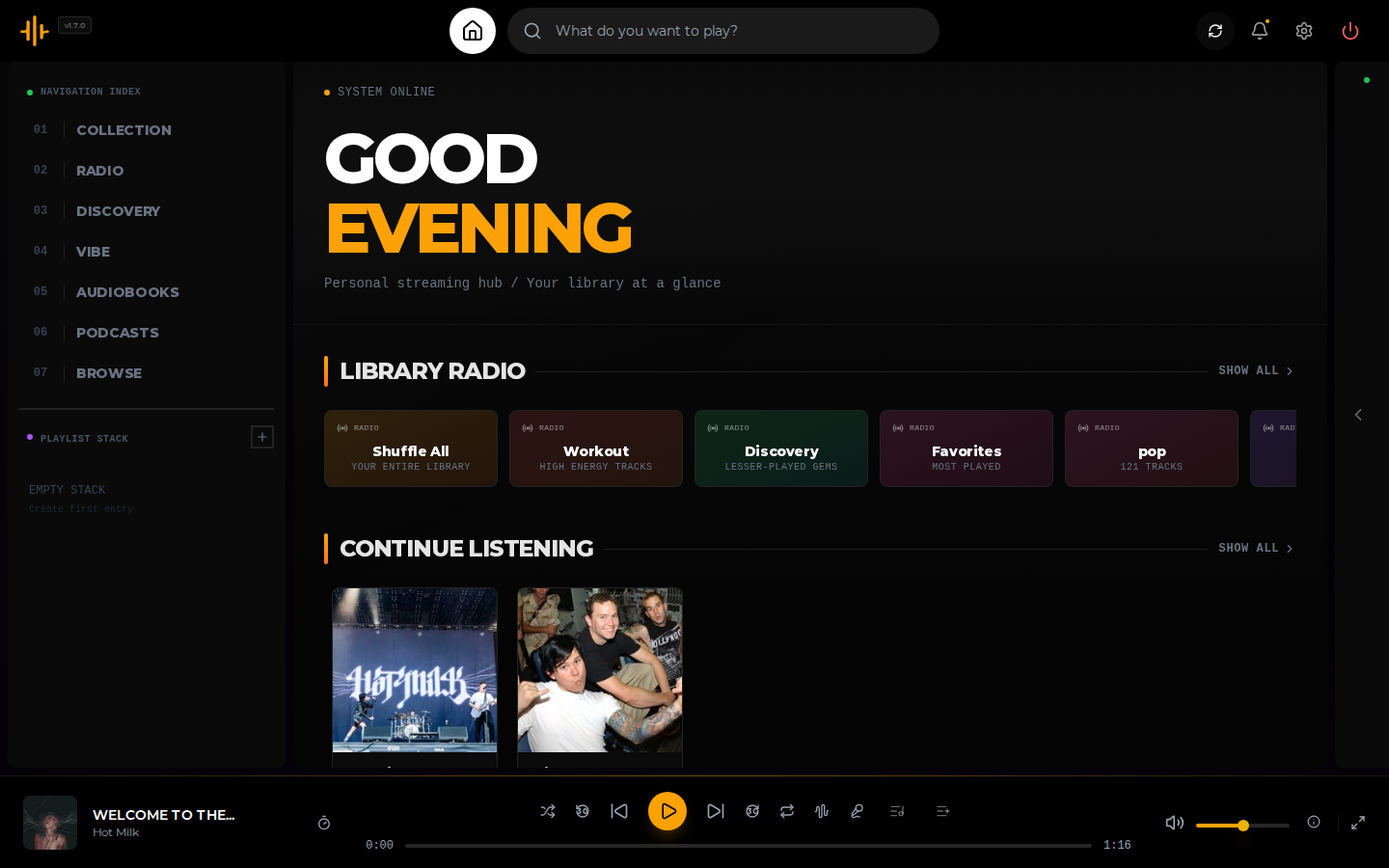
- **Library Radio Stations** - One-click radio modes for instant listening:
- Shuffle All (your entire library)
- Workout (high energy tracks)
- Discovery (lesser-played gems)
- Favorites (most played)
- Dynamic genre and decade stations generated from your library
- **Discover Weekly** - Weekly playlists of new music tailored to your listening habits (requires Lidarr)
- **Artist recommendations** - Find similar artists based on what you already love
- **Artist name resolution** - Smart alias lookup via Last.fm (e.g., "of mice" → "Of Mice & Men")
- **Discography sorting** - Sort artist albums by year or date added
- **Deezer previews** - Preview tracks you don't own before adding them to your library
- **Vibe matching** - Find tracks that match your current mood (see [The Vibe System](#the-vibe-system))
### Podcasts
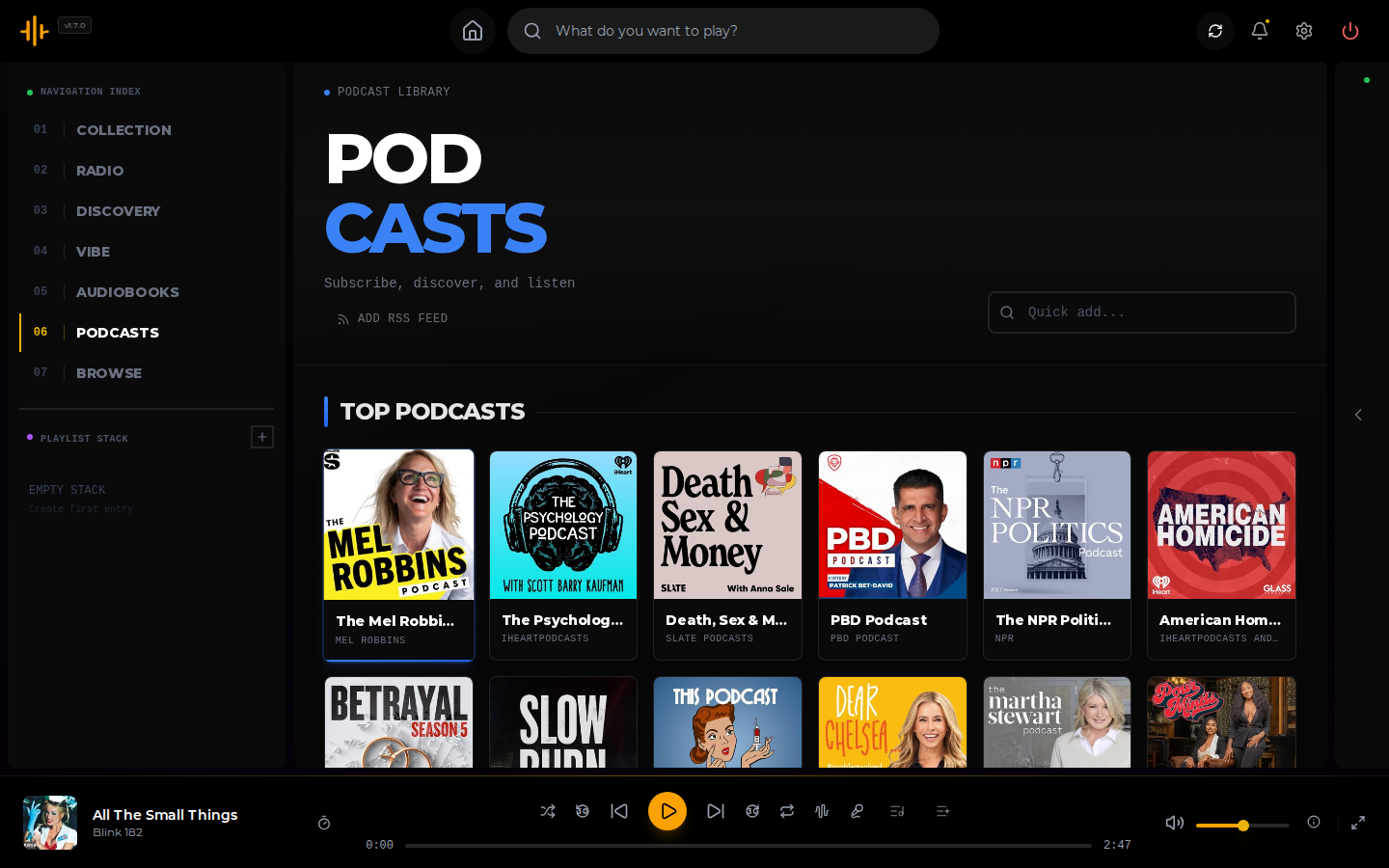
- **Subscribe via RSS** - Search iTunes for podcasts and subscribe directly
- **Track progress** - Pick up where you left off across devices
- **Episode management** - Browse episodes, mark as played, and manage your subscriptions
- **Mobile skip buttons** - Jump ±30 seconds on mobile for easy navigation
### Audiobooks
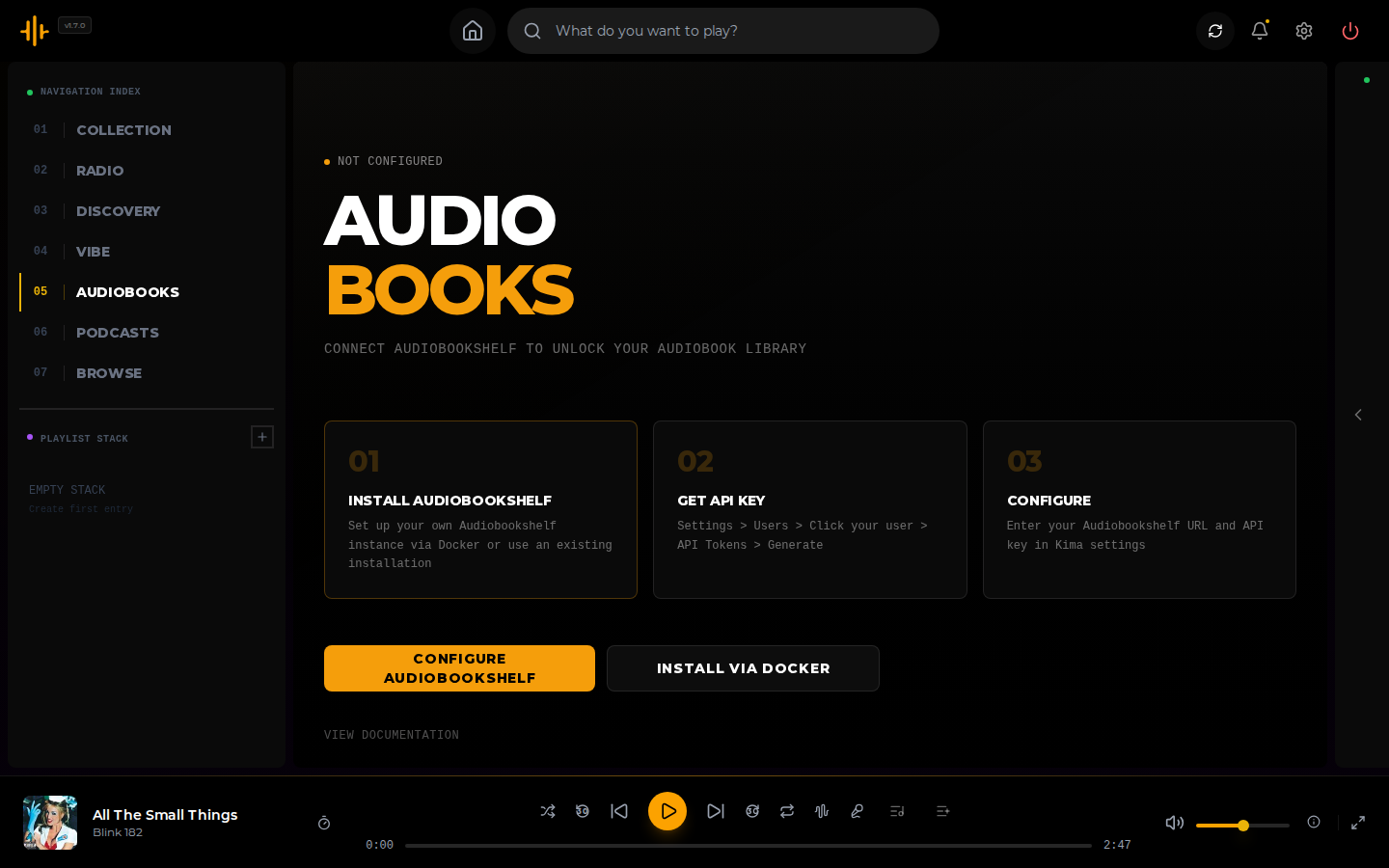
- **Audiobookshelf integration** - Connect your existing Audiobookshelf instance
- **Unified experience** - Browse and listen to audiobooks alongside your music
- **Progress sync** - Your listening position syncs with Audiobookshelf
- **Mobile skip buttons** - Jump ±30 seconds on mobile for easy chapter navigation
### The Vibe System
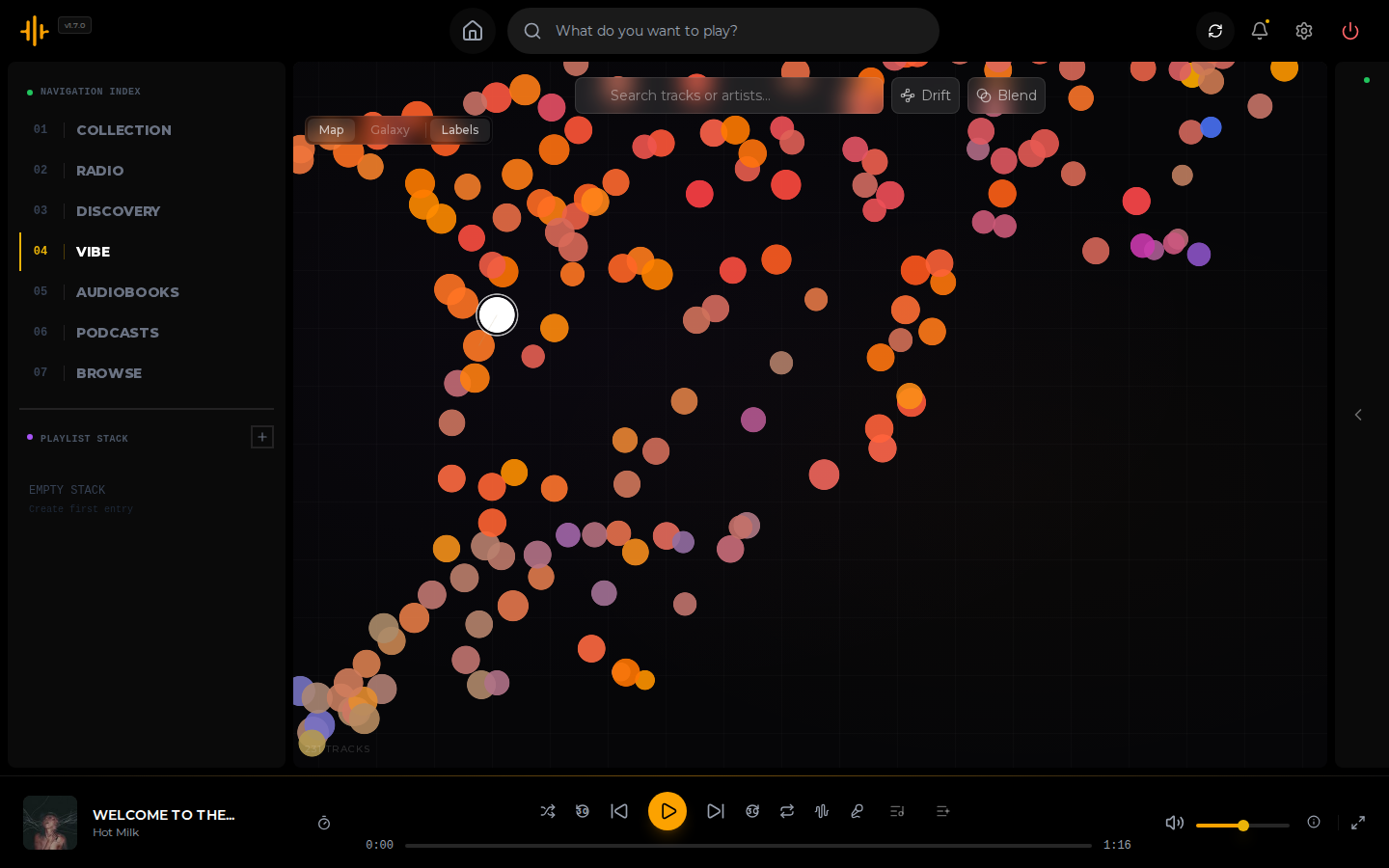
The centerpiece of music discovery in Kima. Your entire library is analyzed by a CLAP neural network and projected into a 2D/3D space where similar-sounding tracks cluster together. The result is a living map of your music collection you can explore, search, and navigate.
**Music Map** -- the default 2D view. Every track in your library is a point on the map, colored by mood cluster. Zoom and pan to explore. Click any track to inspect it; double-click to play it immediately.
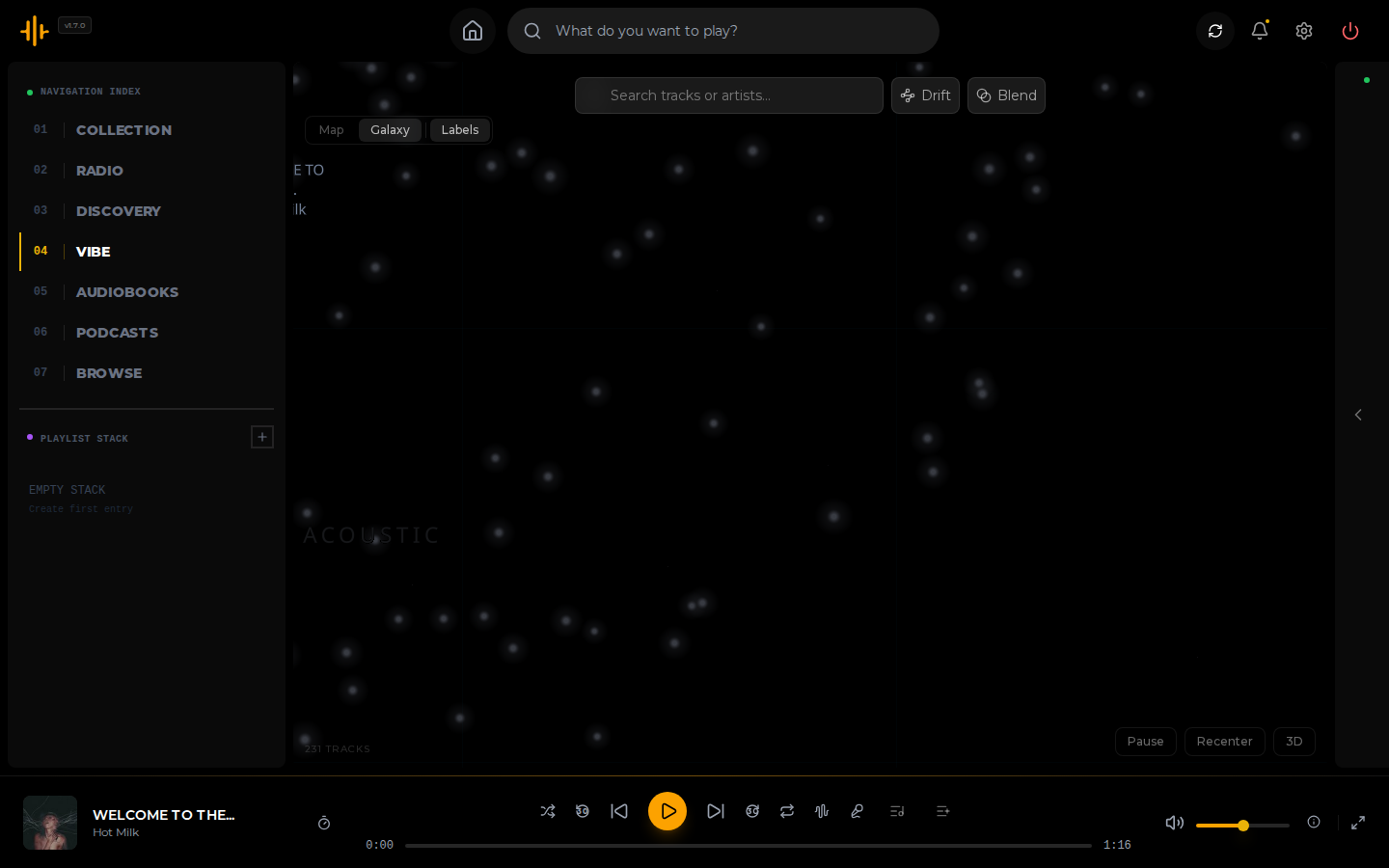
**Galaxy View** -- the same data rendered as a 3D star field. Orbit, zoom, and fly through your library. Switch between Map and Galaxy with the toggle in the top-left corner.
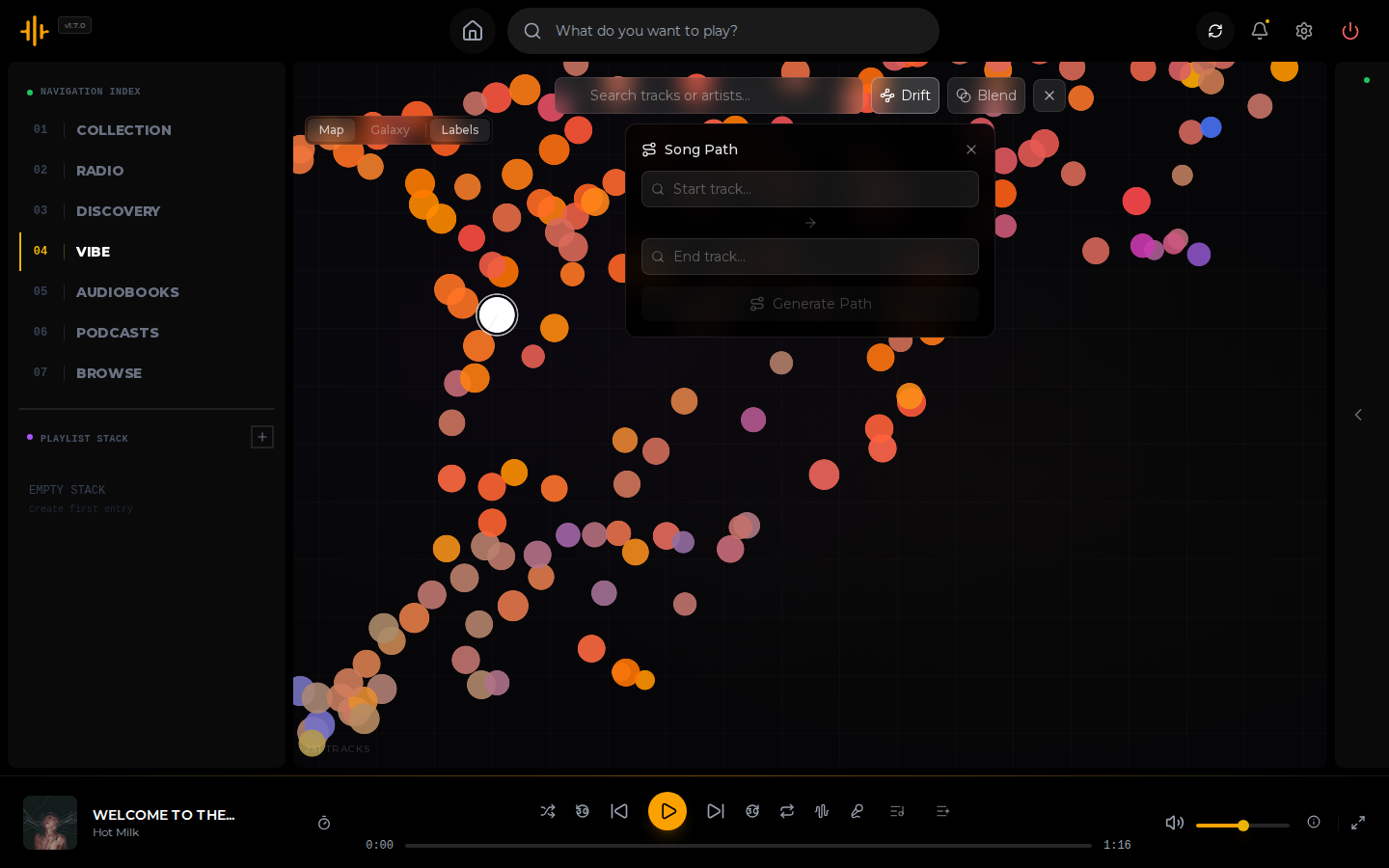
**Drift** -- pick any two tracks as start and end points and Kima plots a smooth path through the audio space between them. The resulting queue travels gradually from one sonic neighborhood to the other.
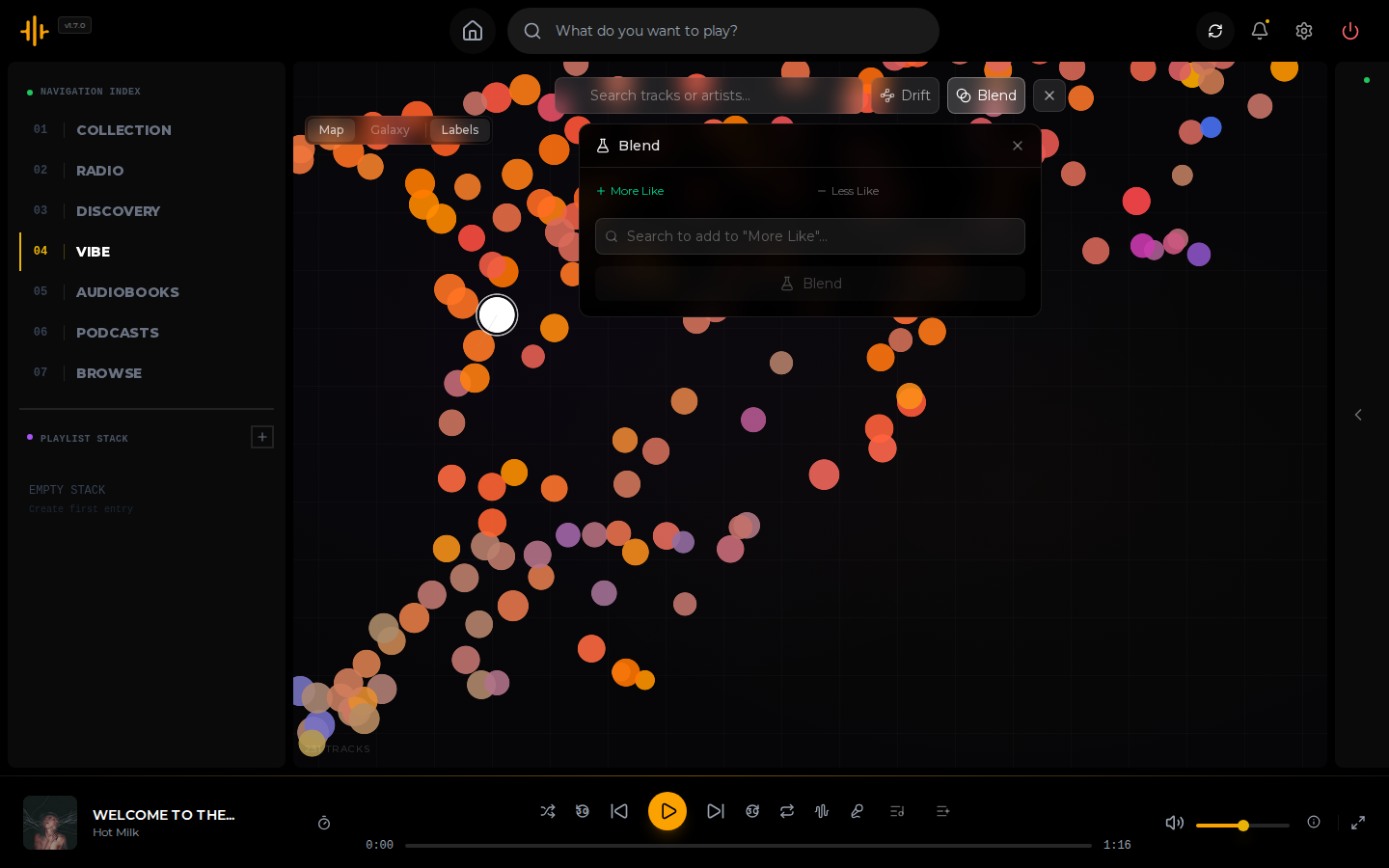
**Blend** -- add multiple tracks and let Kima find the centroid in audio space. The result is a queue of tracks that blend all of the inputs together into something new.
**Additional features:**
- **Text search** - Type any descriptor ("loud and fast", "rainy day piano") to highlight matching tracks on the map
- **Right-click context menu** - Vibe from any track (similar-track queue), find similar (highlight on map), or start a Drift
- **Labels** - Toggle track/artist labels on the map
- **Keep The Vibe Going** - From the player, activate vibe mode to continuously queue tracks that match what's playing
**Mood Mixer** -- pick a mood preset (Happy, Energetic, Chill, Focus, Party, Acoustic, Melancholy, Sad, Aggressive) to instantly generate a playlist calibrated to that sound. Moods are derived from audio analysis of your actual library, not genre tags.
### Playlist Import
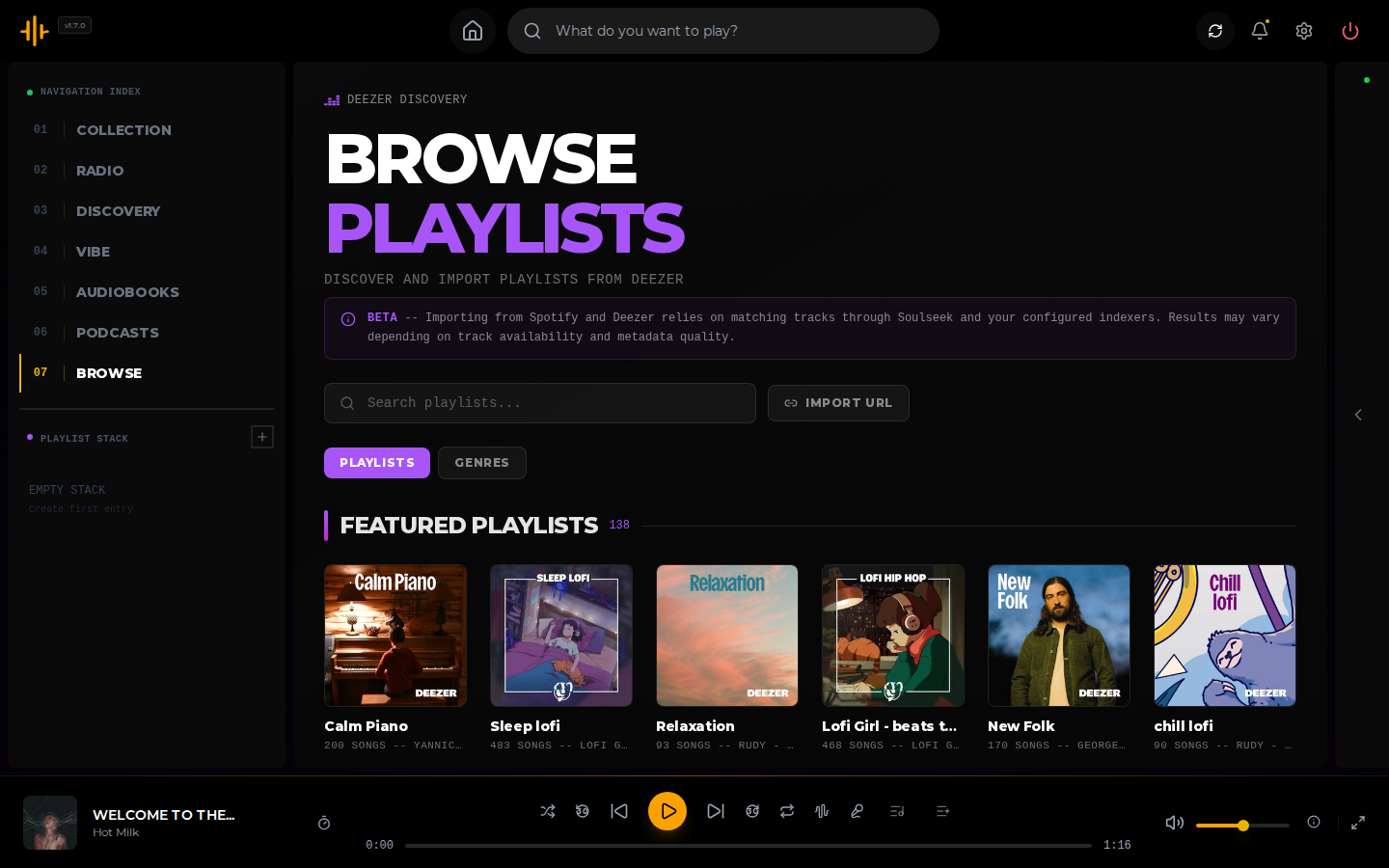
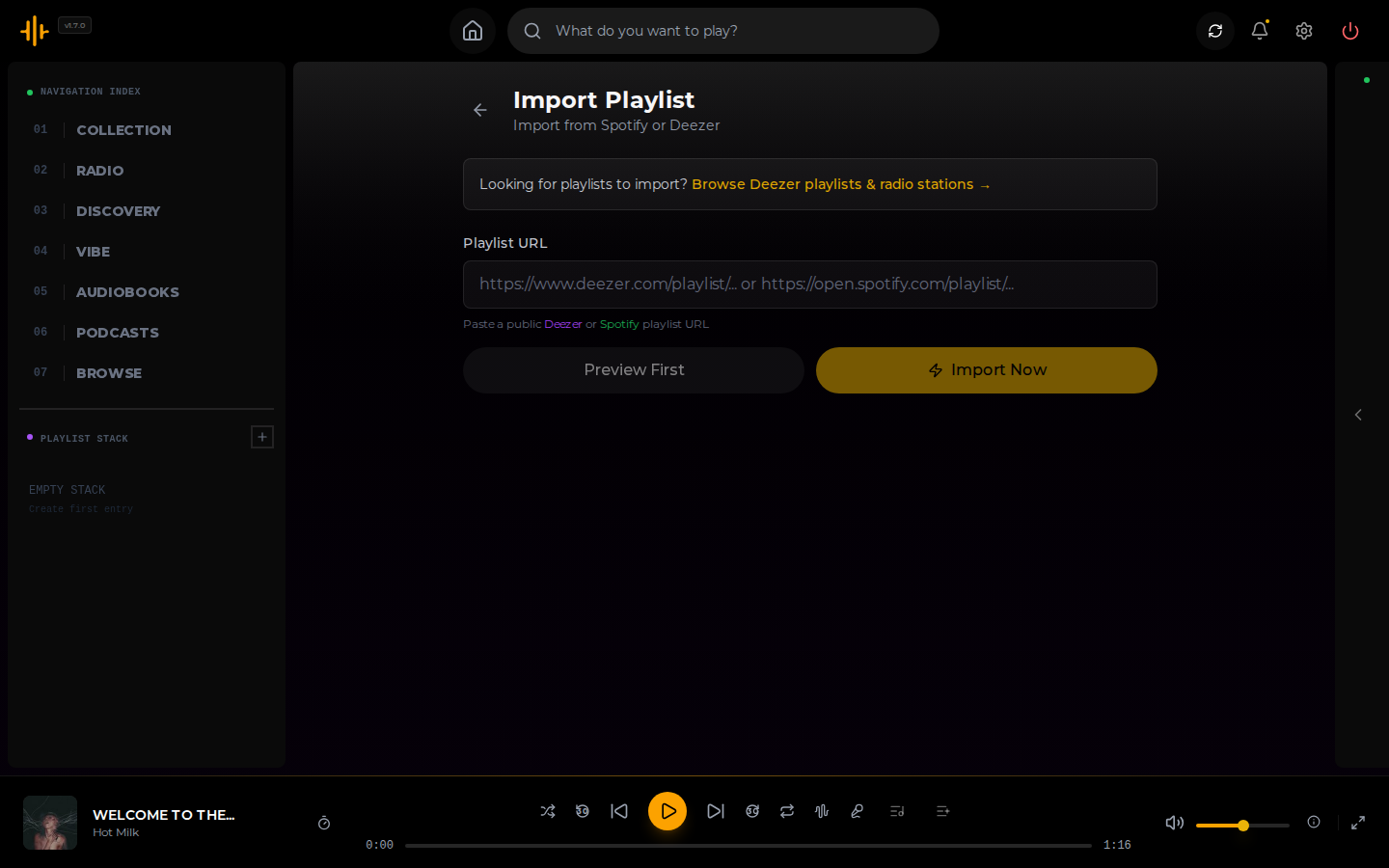
Import playlists from Spotify, Deezer, and YouTube, or browse and discover new music directly.
- **Spotify Import** - Paste any Spotify playlist URL to import tracks
- **Deezer Import** - Same functionality for Deezer playlists
- **YouTube Import** - Import from YouTube and YouTube Music playlists
- **ISRC Matching** - Deterministic track matching via International Standard Recording Codes before falling back to fuzzy text matching
- **Smart Preview** - See which tracks are already in your library, which albums can be downloaded, and which have no matches
- **Selective Download** - Choose exactly which albums to add to your library
- **Browse Deezer** - Explore Deezer's featured playlists and radio stations directly in-app
### Native Apps
- **OpenSubsonic API** - Use any Subsonic-compatible client (Symfonium, DSub, Ultrasonic, etc.) to stream your Kima library
- **Standard Subsonic auth** - MD5 token auth supported; enter your API token as the password -- works with Amperfy, Symfonium, DSub, and any standard Subsonic client
- **Per-client tokens** - Generate named API tokens in Settings > Native Apps; revoke them individually when a device is lost or replaced
- **Enrichment-aware** - Genres and artist biographies exposed to clients come from Last.fm enrichment, not just file tags
- **Lyrics, bookmarks, and play queue** - getLyrics, bookmarks, and savePlayQueue/getPlayQueue for cross-device resume
### Multi-User Support
- **Separate accounts** - Each user gets their own playlists, listening history, and preferences
- **Admin controls** - Manage users and system settings from the web interface
- **Two-factor authentication** - Secure accounts with TOTP-based 2FA
### Custom Playlists
- **Create and curate** - Build your own playlists from your library
- **Share with others** - Make playlists public for other users on your instance
- **Save mixes** - Convert any auto-generated mix into a permanent playlist
### Mobile and TV
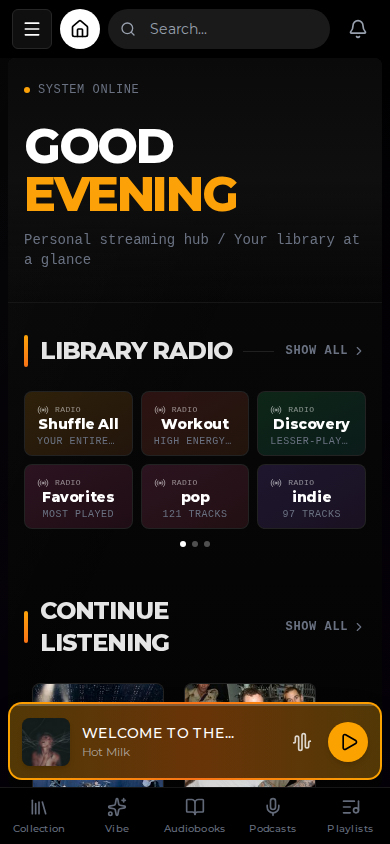
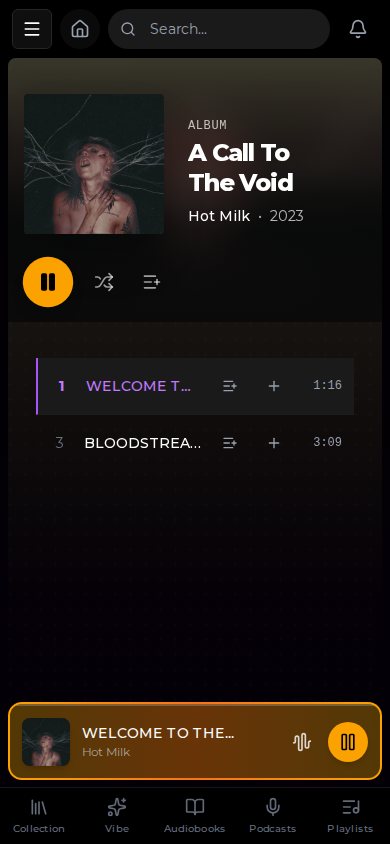
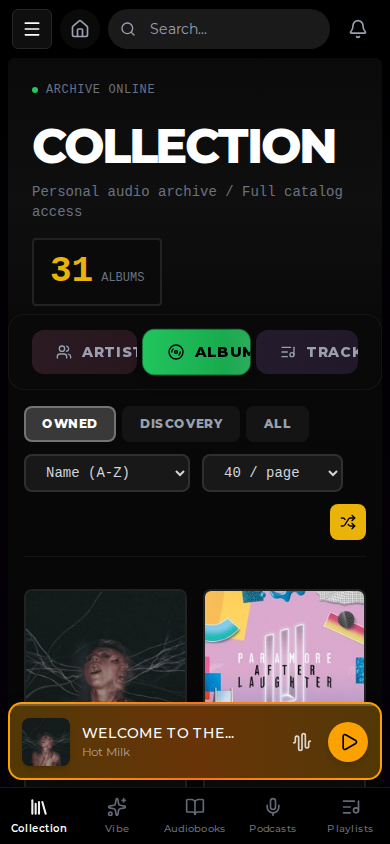
- **Progressive Web App (PWA)** - Install Kima on your phone or tablet for a native-like experience
- **Android TV** - Fully optimized 10-foot interface with D-pad/remote navigation
- **Responsive Web** - Works on any device with a modern browser
---
## Mobile Support
### Progressive Web App (PWA)
Kima works as a PWA on mobile devices, giving you a native app-like experience without needing to download from an app store.
**To install on Android:**
1. Open your Kima server in Chrome
2. Tap the menu (⋮)
3. Select "Add to Home Screen" or "Install app"
**To install on iOS:**
1. Open your Kima server in Safari
2. Tap the Share button
3. Select "Add to Home Screen"
**PWA Features:**
- Full streaming functionality
- Background audio playback
- Lock screen and notification media controls (iOS Control Center and Android notifications)
- Offline caching for faster loads
- Installable icon on home screen
### Android TV
Kima includes a dedicated interface optimized for television displays:
- Large artwork and readable text from across the room
- Full D-pad and remote navigation support
- Persistent Now Playing bar for quick access to playback controls
- Simplified navigation focused on browsing and playback
The TV interface is automatically enabled when accessing Kima from an Android TV device's browser.
---
## Quick Start
### One Command Install
```bash
docker run -d \
--name kima \
-p 3030:3030 \
-v /path/to/your/music:/music \
-v kima_data:/data \
chevron7locked/kima:latest
```
That's it! Open http://localhost:3030 and create your account.
**With GPU acceleration** (requires [NVIDIA Container Toolkit](https://docs.nvidia.com/datacenter/cloud-native/container-toolkit/install-guide.html)):
```bash
docker run -d \
--name kima \
--gpus all \
-p 3030:3030 \
-v /path/to/your/music:/music \
-v kima_data:/data \
chevron7locked/kima:latest
```
### What's Included
The Kima container includes everything you need:
- **Web Interface** (port 3030)
- **API Server** (internal)
- **PostgreSQL Database** (internal)
- **Redis Cache** (internal)
### Configuration Options
```bash
docker run -d \
--name kima \
-p 3030:3030 \
-v /path/to/your/music:/music \
-v kima_data:/data \
-e SESSION_SECRET=your-secret-key \
-e TZ=America/New_York \
--add-host=host.docker.internal:host-gateway \
chevron7locked/kima:latest
```
| Variable | Description | Default |
| ---------------- | ---------------------- | -------------- |
| `SESSION_SECRET` | Session encryption key | Auto-generated |
| `TZ` | Timezone | UTC |
### Using Docker Compose
Create a `docker-compose.yml` file:
```yaml
services:
kima:
image: chevron7locked/kima:latest
container_name: kima
ports:
- "3030:3030"
volumes:
- /path/to/your/music:/music
- kima_data:/data
environment:
- TZ=America/New_York
# Required for Lidarr webhook integration on Linux
extra_hosts:
- "host.docker.internal:host-gateway"
restart: unless-stopped
volumes:
kima_data:
```
Then run:
```bash
docker compose up -d
```
**Updating with Docker Compose:**
```bash
docker compose pull
docker compose up -d
```
### Bind-mounting `/data` on Linux
Named volumes are recommended. If you bind-mount `/data`, make sure required subdirectories exist and are writable by the container service users.
```bash
mkdir -p /path/to/kima-data/postgres /path/to/kima-data/redis
```
If startup logs report a permission error, `chown` the host path to the UID/GID shown in the logs (for example, the postgres user).
---
Kima will begin scanning your music library automatically. Depending on the size of your collection, this may take a few minutes to several hours.
---
## Release Channels
Kima offers two release channels to match your stability preferences:
### 🟢 Stable (Recommended)
Production-ready releases. Updated when new stable versions are released.
```bash
docker pull chevron7locked/kima:latest
# or specific version
docker pull chevron7locked/kima:v1.7.3
```
### 🔴 Nightly (Development)
Latest development build. Built on every push to main.
⚠️ **Not recommended for production** - may be unstable or broken.
```bash
docker pull chevron7locked/kima:nightly
```
**For contributors:** See [`CONTRIBUTING.md`](CONTRIBUTING.md) for information on submitting pull requests and contributing to Kima.
---
## Configuration
### Environment Variables
The unified Kima container handles most configuration automatically. Here are the available options:
| Variable | Default | Description |
| ----------------------------------- | ---------------------------------- | --------------------------------------------------------------------------- |
| `SESSION_SECRET` | Auto-generated | Session encryption key (recommended to set for persistence across restarts) |
| `SETTINGS_ENCRYPTION_KEY` | Required | Encryption key for stored credentials (generate with `openssl rand -base64 32`) |
| `TZ` | `UTC` | Timezone for the container |
| `PORT` | `3030` | Port to access Kima |
| `KIMA_CALLBACK_URL` | `http://host.docker.internal:3030` | URL for Lidarr webhook callbacks (see [Lidarr integration](#lidarr)) |
| `AUDIO_ANALYSIS_WORKERS` | `2` | Number of parallel workers for audio analysis (1-8) |
| `AUDIO_ANALYSIS_THREADS_PER_WORKER` | `1` | Threads per worker for TensorFlow/FFT operations (1-4) |
| `AUDIO_ANALYSIS_BATCH_SIZE` | `10` | Tracks per analysis batch |
| `AUDIO_BRPOP_TIMEOUT` | `30` | Redis blocking wait timeout in seconds (also controls DB reconciliation) |
| `AUDIO_MODEL_IDLE_TIMEOUT` | `300` | Seconds before unloading idle ML models to free memory (0 = never unload) |
| `LOG_LEVEL` | `warn` (prod) / `debug` (dev) | Logging verbosity: debug, info, warn, error, silent |
| `DOCS_PUBLIC` | `false` | Set to `true` to allow public access to API docs in production |
The music library path is configured via Docker volume mount (`-v /path/to/music:/music`).
#### External Access
If you're accessing Kima from outside your local network (via reverse proxy, for example), set the API URL:
```env
NEXT_PUBLIC_API_URL=https://kima-api.yourdomain.com
```
And add your domain to the allowed origins:
```env
ALLOWED_ORIGINS=http://localhost:3030,https://kima.yourdomain.com
```
---
## Security Considerations
### Environment Variables
Kima uses several sensitive environment variables. Never commit your `.env` file.
| Variable | Purpose | Required |
| ------------------------- | ------------------------------ | ----------------- |
| `SESSION_SECRET` | Session encryption (32+ chars) | Yes |
| `SETTINGS_ENCRYPTION_KEY` | Encrypts stored credentials | Yes |
| `SOULSEEK_USERNAME` | Soulseek login | If using Soulseek |
| `SOULSEEK_PASSWORD` | Soulseek password | If using Soulseek |
| `LIDARR_API_KEY` | Lidarr integration | If using Lidarr |
| `OPENAI_API_KEY` | AI features | Optional |
| `LASTFM_API_KEY` | Artist recommendations | Optional |
| `FANART_API_KEY` | Artist images | Optional |
### Authentication & Session Security
- **JWT tokens** - Access tokens expire after 24 hours; refresh tokens after 30 days
- **Token refresh** - Automatic token refresh via `/api/auth/refresh` endpoint
- **Password changes** - Changing your password invalidates all existing sessions
- **Session cookies** - Secured with `httpOnly`, `sameSite=strict`, and `secure` (in production)
- **Encryption validation** - Encryption key is validated on startup to prevent insecure defaults
### Webhook Security
- **Lidarr webhooks** - Support signature verification with configurable secret
- Configure the webhook secret in Settings → Lidarr for additional security
### Admin Dashboard Security
- **Bull Board** - Job queue dashboard at `/admin/queues` requires authenticated admin user
- **API Documentation** - Swagger docs at `/api-docs` require authentication in production (unless `DOCS_PUBLIC=true`)
### VPN Configuration (Optional)
If using Mullvad VPN for Soulseek:
- Place WireGuard config in `backend/mullvad/` (gitignored)
- Never commit VPN credentials or private keys
- The `*.conf` and `key.txt` patterns are already in .gitignore
### Generating Secrets
```bash
# Generate a secure session secret
openssl rand -base64 32
# Generate encryption key
openssl rand -base64 32
```
### Network Security
- Kima is designed for self-hosted LAN use
- For external access, use a reverse proxy with HTTPS
- Configure `ALLOWED_ORIGINS` for your domain
---
## CLAP Audio Analysis
The CLAP (Contrastive Language-Audio Pretraining) service generates embeddings for audio similarity search, powering the Vibe button's track matching feature.
### Requirements
- PostgreSQL with pgvector extension (included in `pgvector/pgvector:pg16` image)
- 2-4GB RAM per worker
- CLAP model downloads automatically on first build (~700MB)
### Configuration
Environment variables in docker-compose.yml:
| Variable | Default | Description |
| ------------------------- | ------- | ------------------------------------------ |
| `CLAP_WORKERS` | `2` | Number of analysis workers (1-8) |
| `CLAP_THREADS_PER_WORKER` | `1` | CPU threads per worker (1-4) |
| `CLAP_SLEEP_INTERVAL` | `5` | Queue poll interval in seconds |
### Usage
The CLAP analyzer runs automatically alongside the main audio analyzer. The vibe button uses CLAP embeddings for finding similar tracks. Text-based vibe search is available at `/api/vibe/search`.
### API Endpoints
| Endpoint | Method | Description |
| ------------------------------ | ------ | ------------------------------------------ |
| `/api/vibe/similar/:trackId` | GET | Get tracks similar to the given track |
| `/api/vibe/search` | POST | Search tracks by text description |
| `/api/vibe/status` | GET | Get embedding progress |
---
## GPU Acceleration
GPU acceleration speeds up audio analysis (mood detection, BPM extraction, vibe embeddings). It is **optional** -- everything works on CPU, just slower.
### Requirements
- NVIDIA GPU with CUDA support
- NVIDIA drivers installed on the host (`nvidia-smi` should work)
- [NVIDIA Container Toolkit](https://docs.nvidia.com/datacenter/cloud-native/container-toolkit/install-guide.html) -- bridges Docker to your GPU
### Install NVIDIA Container Toolkit
The toolkit is required for any Docker container to access the GPU. Install it once:
**Fedora / Nobara / RHEL:**
```bash
curl -s -L https://nvidia.github.io/libnvidia-container/stable/rpm/nvidia-container-toolkit.repo | sudo tee /etc/yum.repos.d/nvidia-container-toolkit.repo && sudo dnf install -y nvidia-container-toolkit && sudo nvidia-ctk runtime configure --runtime=docker && sudo systemctl restart docker
```
**Ubuntu / Debian:**
```bash
curl -fsSL https://nvidia.github.io/libnvidia-container/gpgkey | sudo gpg --dearmor -o /usr/share/keyrings/nvidia-container-toolkit-keyring.gpg && curl -s -L https://nvidia.github.io/libnvidia-container/stable/deb/nvidia-container-toolkit.list | sed 's#deb https://#deb [signed-by=/usr/share/keyrings/nvidia-container-toolkit-keyring.gpg] https://#g' | sudo tee /etc/apt/sources.list.d/nvidia-container-toolkit.list && sudo apt-get update && sudo apt-get install -y nvidia-container-toolkit && sudo nvidia-ctk runtime configure --runtime=docker && sudo systemctl restart docker
```
### Verify Host Setup
```bash
# Check NVIDIA driver
nvidia-smi
# Check container toolkit
nvidia-container-runtime --version
```
### Enable GPU
**All-in-One container:**
```bash
docker run -d --gpus all -p 3030:3030 -v /path/to/music:/music -v kima_data:/data chevron7locked/kima:latest
```
**Docker Compose:**
Uncomment the `devices` block under `audio-analyzer` (and optionally `audio-analyzer-clap`) in `docker-compose.yml`:
```yaml
reservations:
memory: 2G
devices:
- driver: nvidia
count: 1
capabilities: [gpu]
```
Then restart: `docker compose up -d`
### Verify GPU Detection
```bash
# MusiCNN analyzer
docker logs kima_audio_analyzer 2>&1 | grep -i gpu
# CLAP analyzer
docker logs kima_audio_analyzer_clap 2>&1 | grep -i gpu
```
Expected: `TensorFlow GPU detected: ...` or `CUDA available: True`
If you see `TensorFlow running on CPU`, GPU passthrough is not active.
---
## Integrations
Kima works beautifully on its own, but it becomes even more powerful when connected to other services.
### Lidarr
Connect Kima to your Lidarr instance to request and download new music directly from the app.
**What you get:**
- Browse artists and albums you don't own
- Request downloads with a single click
- Discover Weekly playlists that automatically download new recommendations
- Automatic library sync when Lidarr finishes importing
**Setup:**
1. Go to Settings in Kima
2. Navigate to the Lidarr section
3. Enter your Lidarr URL (e.g., `http://localhost:8686`)
4. Enter your Lidarr API key (found in Lidarr under Settings > General)
5. Test the connection and save
Kima will automatically configure a webhook in Lidarr to receive notifications when new music is imported.
**Networking Note:**
The webhook requires Lidarr to be able to reach Kima. By default, Kima uses `host.docker.internal:3030` which works automatically when using the provided docker-compose files (they include `extra_hosts` to enable this on Linux).
If you're using **custom Docker networks** with static IPs, set the callback URL so Lidarr knows how to reach Kima:
```yaml
environment:
- KIMA_CALLBACK_URL=http://YOUR_KIMA_IP:3030
```
Use the IP address that Lidarr can reach. If both containers are on the same Docker network, use Kima's container IP.
### Audiobookshelf
Connect to your Audiobookshelf instance to browse and listen to audiobooks within Kima.
**What you get:**
- Browse your audiobook library
- Stream audiobooks directly in Kima
- Progress syncs between Kima and Audiobookshelf
**Setup:**
1. Go to Settings in Kima
2. Navigate to the Audiobookshelf section
3. Enter your Audiobookshelf URL (e.g., `http://localhost:13378`)
4. Enter your API key (found in Audiobookshelf under Settings > Users > your user > API Token)
5. Test the connection and save
### Soulseek
Kima includes built-in Soulseek support for finding rare tracks and one-offs that aren't available through traditional download sources like Lidarr.
[Soulseek](https://www.slsknet.org/) is a peer-to-peer file sharing network focused on music. Users share their music libraries and can browse/download from each other. Kima connects directly to the Soulseek network -- no additional software (like slskd) is required.
**Setup:**
1. Go to Settings in Kima
2. Navigate to the Soulseek section
3. Enter your Soulseek username and password (create an account at [slsknet.org](https://www.slsknet.org/) if you don't have one)
4. Save your settings
**How Search Works:**
When you search for music in Kima's Discovery tab, Soulseek results appear alongside Last.fm and Deezer results. Each result shows the filename, file size, bitrate, and format (FLAC/MP3). Metadata like artist and album is parsed from the file path structure (typically `Artist/Album/01 - Track.flac`).
**How Download Works:**
1. Click the download button on a Soulseek search result
2. Kima searches the Soulseek network for the best match (preferring FLAC, high bitrate)
3. The file is downloaded directly to your music library path
4. A library scan is triggered to import the new file
5. Metadata enrichment runs automatically (artist info, mood tags, audio analysis)
You can also configure Soulseek as a download source for playlist imports. In Settings > Downloads, set Soulseek as primary or fallback source. When importing a Spotify/Deezer playlist, tracks not found in your library will be searched and downloaded from Soulseek automatically.
**Download progress** is visible in the Activity Panel (bell icon in the top bar).
**Limitations:**
- Download speed depends on the sharing user's connection and availability
- Not all tracks will have results -- Soulseek coverage varies by genre and popularity
- Some users may have slow connections or go offline during transfers
- Kima retries with alternative users if a download fails or times out
### Native Apps (Subsonic)
Kima implements the [OpenSubsonic](https://opensubsonic.netlify.app/) REST API, making it compatible with any Subsonic client.
**Tested clients:** Amperfy (iOS), Symfonium, DSub, Ultrasonic
**Setup:**
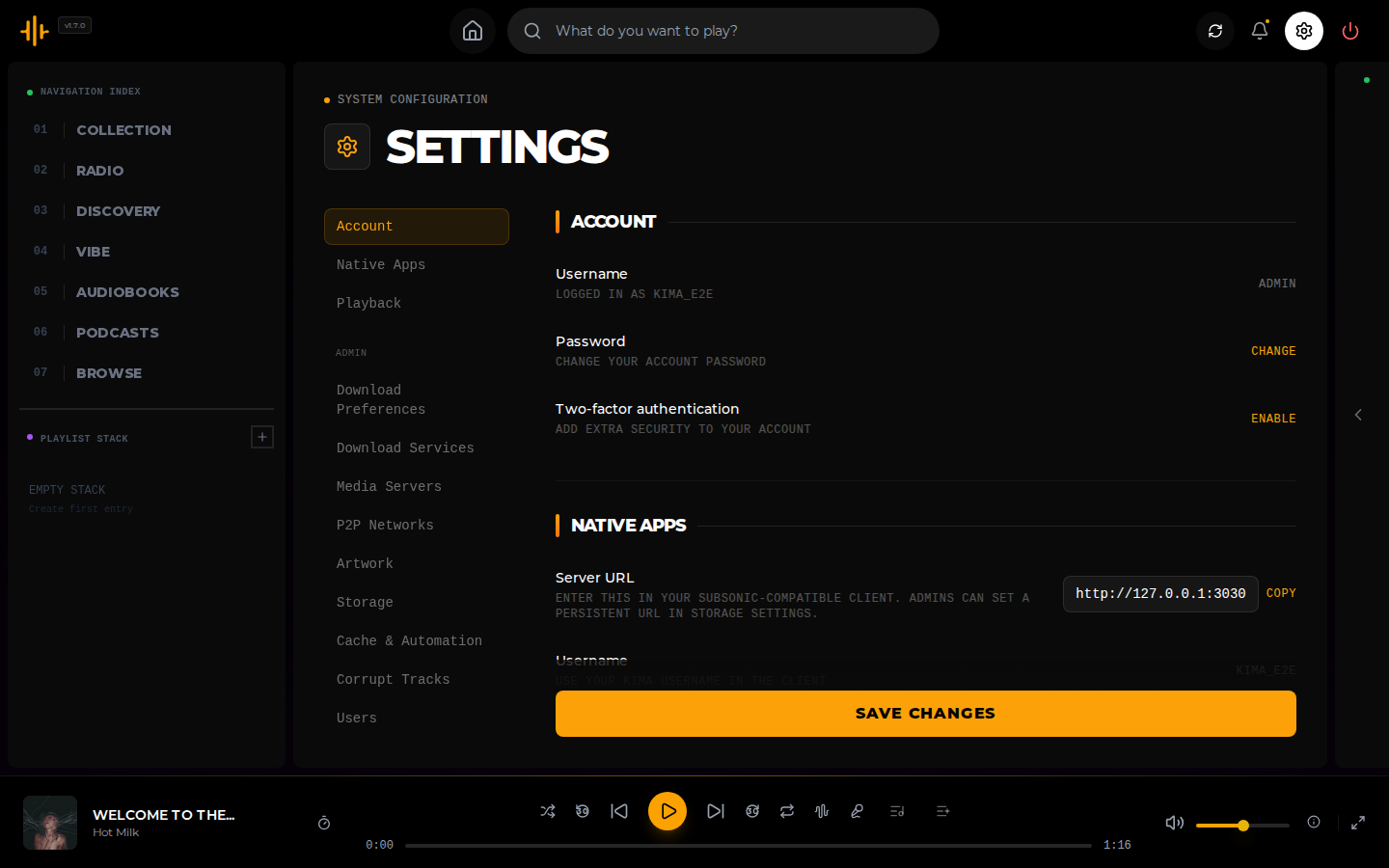
1. Go to Settings > Native Apps in Kima
2. Enter a client name (e.g. "Amperfy on iPhone") and click **Generate Token**
3. Copy and save the token -- it is only shown once
4. In your client app, configure:
- **Server URL** -- your Kima server address (e.g. `http://192.168.1.10:3030`)
- **Username** -- your Kima username
- **Password** -- the token you just generated
**Notes:**
- Standard MD5 token auth is supported -- clients that hash their password automatically will work correctly when you enter an API token as the password
- Each client should have its own token so you can revoke access per device
- Genres and biographies surfaced to clients come from Last.fm enrichment, not just file tags
- DISCOVER-location albums are excluded from all library views
- OpenSubsonic extensions exposed: `apiKeyAuthentication`, `songLyrics`, `indexBasedQueue`, and `getPodcastEpisode`
- Additional OpenSubsonic endpoints supported: `tokenInfo`, `startScan`, `getScanStatus`, `search`, `search2`, `search3`, `getUser`, `getUsers`, `createUser`, `updateUser`, `deleteUser`, `changePassword`, `getPlaylists`, `getPlaylist`, `createPlaylist`, `updatePlaylist`, `deletePlaylist`, `setRating`, `getPlayQueue`, `getPlayQueueByIndex`, `savePlayQueue`, `savePlayQueueByIndex`, `getBookmarks`, `createBookmark`, `deleteBookmark`, `getInternetRadioStations`, `createInternetRadioStation`, `updateInternetRadioStation`, `deleteInternetRadioStation`, `getAvatar`, `getShares`, `createShare`, `updateShare`, `deleteShare`, `getChatMessages`, `addChatMessage`, `getVideos`, `getVideoInfo`, `getCaptions`, `jukeboxControl`, `getTranscodeDecision`, `getTranscodeStream`, `hls`, `getLyricsBySongId`, `getLyrics`, `getNowPlaying`, `getTopSongs`, `getSongsByGenre`, `getSimilarSongs`, `getSimilarSongs2`, `getMusicDirectory`, `getPodcasts`, `getNewestPodcasts`, `getPodcastEpisode`, `refreshPodcasts`
**Subsonic route module layout (backend):**
- `backend/src/routes/subsonic/index.ts` -- top-level router composition, auth/rate-limit, system endpoints
- `library.ts` -- artists/albums/tracks browsing and directory traversal
- `search.ts` -- `search`/`search2`/`search3`, genre/top/similar discovery
- `playback.ts` -- stream/download/cover-art/scrobble/now-playing plus `hls`/`getTranscodeStream`
- `playlists.ts` -- playlist list/read/create/update/delete
- `queue.ts` -- play queue get/save (ID-based and index-based)
- `starred.ts` -- star/unstar, starred lists, `setRating`
- `artistInfo.ts` / `lyrics.ts` -- artist metadata and lyric endpoints
- `userManagement.ts` / `profile.ts` -- user admin endpoints and `getUser`
- `podcasts.ts` -- podcast subscription and episode endpoints
- `compat.ts` -- compatibility/stub endpoints for clients that expect optional APIs
**When adding a Subsonic endpoint:**
1. Add the handler in the module that matches endpoint ownership (or create a new focused module if needed).
2. Validate required query params and return Subsonic-compatible errors via `subsonicError`.
3. Return response payloads through `subsonicOk` using existing mapper helpers where possible.
4. Register the router in `backend/src/routes/subsonic/index.ts` (preserve catch-all behavior).
5. Update the endpoint support list in this README and run diagnostics on touched Subsonic route files.
---
## Using Kima
### First-Time Setup
When you first access Kima, you'll be guided through a setup wizard:
1. **Create your account** - The first user becomes the administrator
2. **Configure integrations** - Optionally connect Lidarr, Audiobookshelf, and other services
3. **Wait for library scan** - Kima will scan and catalog your music collection
### The Home Screen
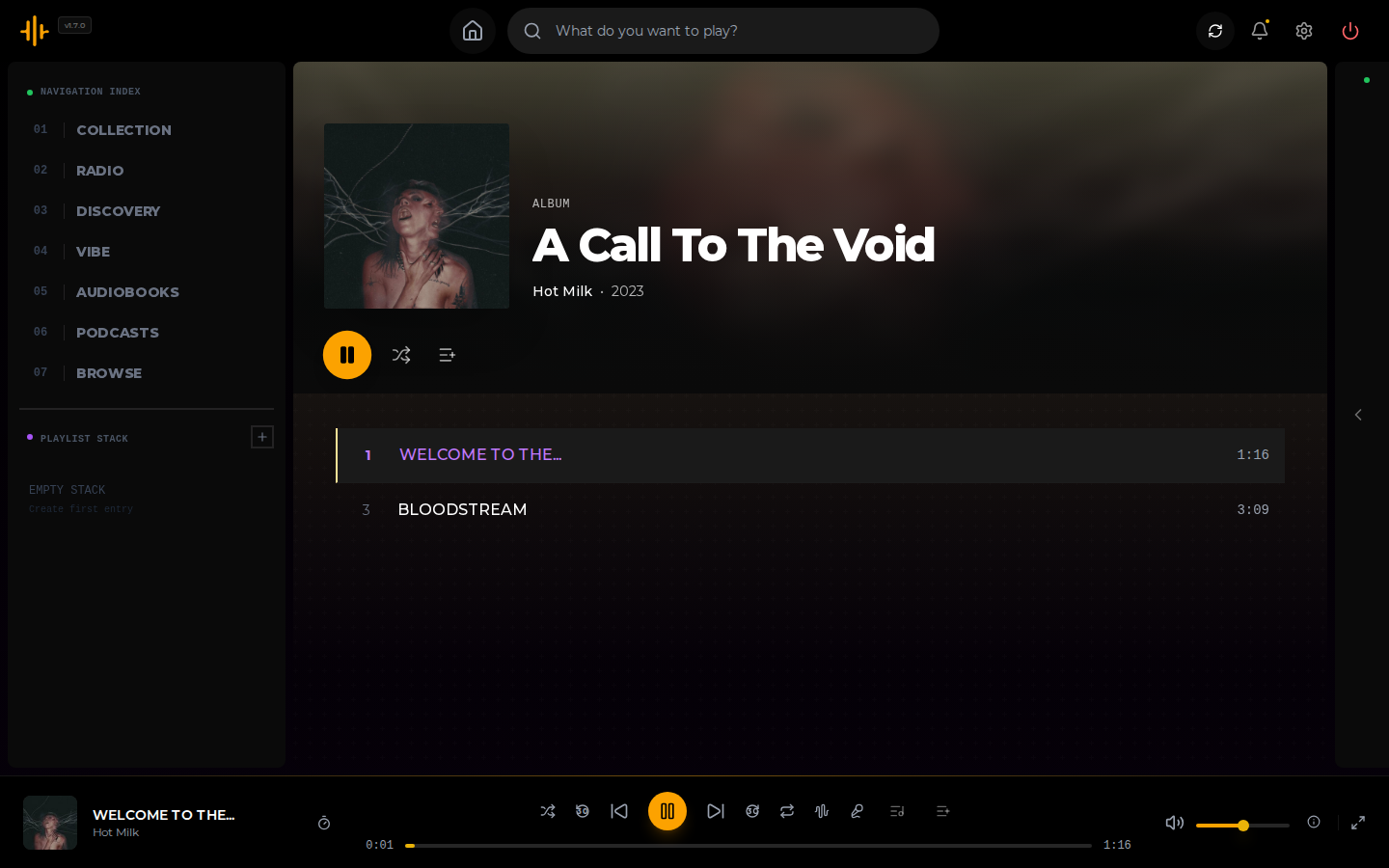
After setup, your home screen displays:
- **Continue Listening** - Pick up where you left off
- **Recently Added** - New additions to your library
- **Library Radio Stations** - One-click radio modes (Shuffle All, Workout, Discovery, Favorites, plus genre and decade stations)
- **Made For You** - Auto-generated mixes based on your library
- **Recommended For You** - Artist recommendations from Last.fm
- **Popular Podcasts** - Trending podcasts you might enjoy
- **Audiobooks** - Quick access to your audiobook library (if Audiobookshelf is connected)
### Searching
Kima offers two search modes:
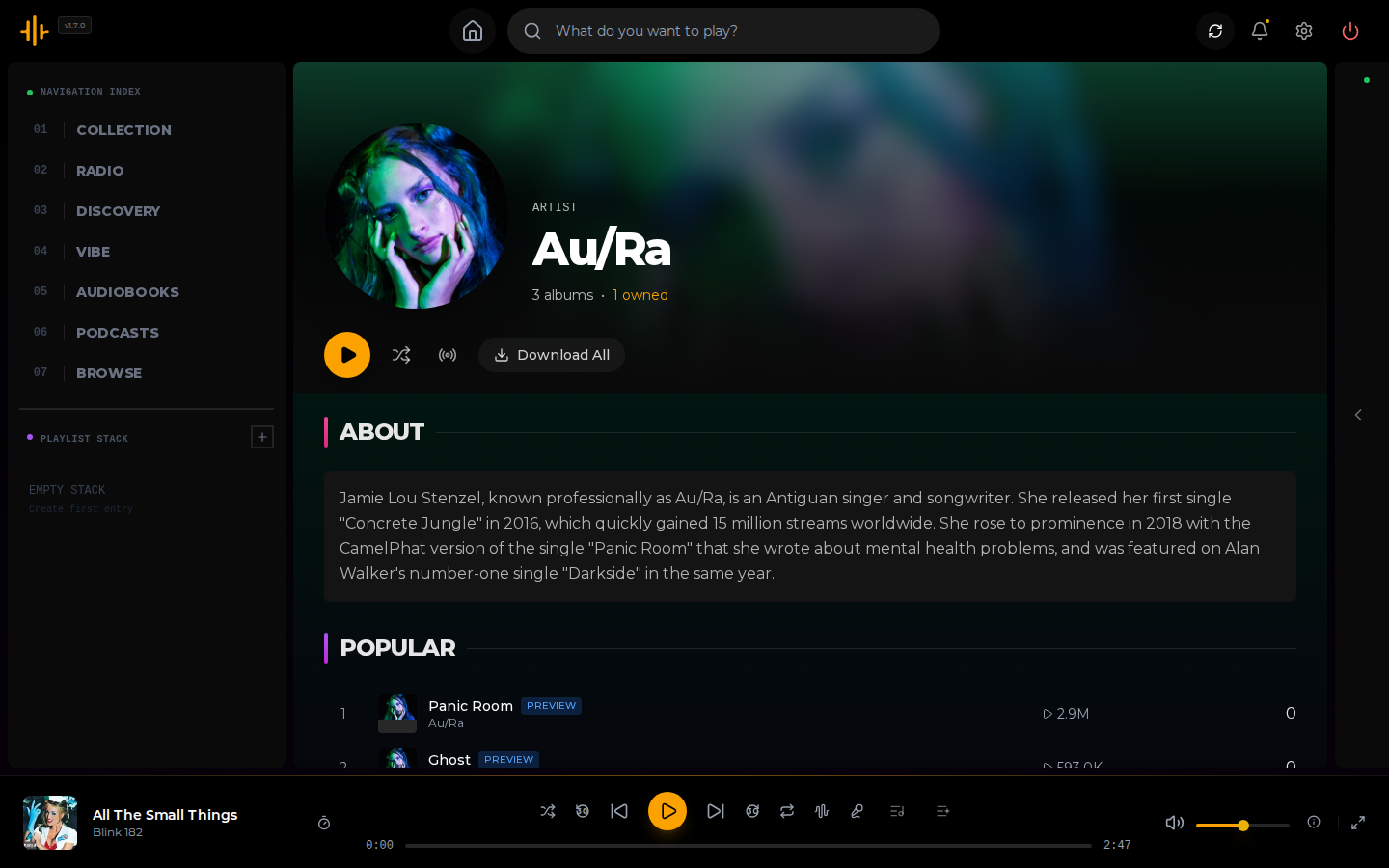
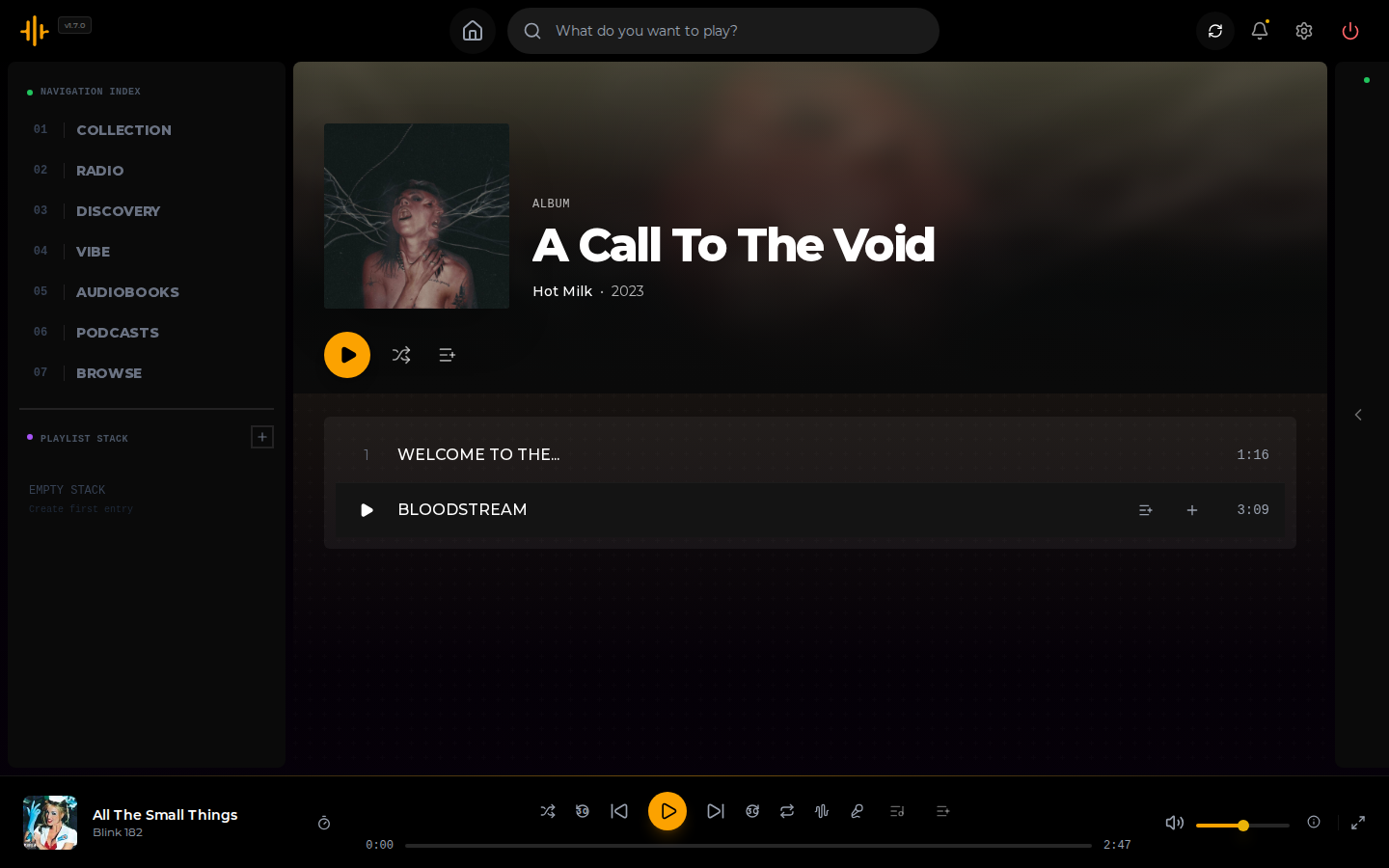
**Library Search** - Find artists, albums, and tracks in your collection. Results are instant and searchable by name.
**Discovery Search** - Find new music and podcasts you don't own. Powered by Last.fm for music and iTunes for podcasts. From discovery results, you can:
- Preview tracks via Deezer
- Request downloads through Lidarr
- Subscribe to podcasts
### Managing Podcasts
1. Use the search bar and select "Podcasts" to find shows
2. Click on a podcast to see its details and recent episodes
3. Click Subscribe to add it to your library
4. Episodes stream directly from the RSS feed - no downloads required
Your listening progress is saved automatically, so you can pause on one device and resume on another.
### Creating Playlists
1. Navigate to your Library and select the Playlists tab
2. Click "New Playlist" and give it a name
3. Add tracks by clicking the menu on any song and selecting "Add to Playlist"
4. Reorder tracks by dragging and dropping
5. Toggle "Public" to share with other users on your instance
### Using the Vibe System
**Exploring the map:**
1. Navigate to **Vibe** in the sidebar
2. Your library loads as a 2D music map -- similar-sounding tracks cluster together
3. Click any point to inspect the track; double-click to play it
4. Switch to **Galaxy** view for a 3D star-field perspective
5. Use the **Search** bar to highlight tracks matching a text description
**Drift -- journey between two tracks:**
1. Click **Drift** in the toolbar
2. Search for and select a start track, then an end track
3. Click **Generate Path** -- Kima queues a smooth sonic journey between them
**Blend -- find the space between multiple tracks:**
1. Click **Blend** in the toolbar
2. Add tracks you want to blend together
3. Kima finds the centroid in audio space and queues tracks from that neighborhood
**Keep The Vibe Going (from the player):**
1. Start playing any track
2. Right-click it on the vibe map and select **Vibe** to queue similar tracks continuously
**Mood Mixer:**
1. On the home screen, click **Mood Mixer** next to the Made For You section
2. Select a mood preset -- Kima instantly generates a playlist from your library calibrated to that mood
3. Each preset count shows how many tracks in your library match that mood
### Importing Playlists
**From Spotify:**
1. Copy a Spotify playlist URL
2. Go to Import (in the sidebar)
3. Paste the URL and click Preview
4. Review the results - you'll see which tracks are in your library, which can be downloaded, and which aren't available
5. Select albums to download and start the import
**From Deezer:**
1. Browse featured playlists directly in the Browse section, or paste a Deezer playlist URL
2. The same preview and import flow applies
3. Explore Deezer's curated playlists and radio stations for discovery
**From YouTube:**
1. Copy a YouTube or YouTube Music playlist URL
2. Paste it in the import field on the Playlists page
3. Kima extracts individual tracks and resolves them via song.link to identify each one
4. The same preview and import flow applies
### Playback Settings
In Settings, you can configure:
- **Playback Quality** - Choose between Original, High (320kbps), Medium (192kbps), or Low (128kbps)
- **Cache Size** - Limit how much space transcoded files use
### Keyboard Shortcuts
When using the web interface, these keyboard shortcuts are available during playback:
| Key | Action |
| ----------- | ------------------------ |
| Space | Play / Pause |
| N | Next track |
| P | Previous track |
| S | Toggle shuffle |
| M | Toggle mute |
| Arrow Up | Volume up |
| Arrow Down | Volume down |
| Arrow Right | Seek forward 10 seconds |
| Arrow Left | Seek backward 10 seconds |
### Android TV
Kima includes a dedicated interface optimized for television displays:
- Large artwork and readable text from across the room
- Full D-pad and remote navigation support
- Persistent Now Playing bar for quick access to playback controls
- Simplified navigation focused on browsing and playback
The TV interface is automatically enabled when accessing Kima from an Android TV device. Access it through your TV's web browser.
---
## Administration
### Managing Users
As an administrator, you can:
1. Go to Settings > User Management
2. Create new user accounts
3. Delete existing users (except yourself)
4. Users can be assigned "admin" or "user" roles
### System Settings
Administrators have access to additional settings:
- **Lidarr/Audiobookshelf/Soulseek** - Configure integrations
- **Storage Paths** - View configured paths
- **Cache Management** - Clear caches if needed
- **Advanced** - Download retry settings, concurrent download limits
### Download Settings
Configure how Kima acquires new music in Settings → Downloads:
- **Primary Source** - Choose between Soulseek or Lidarr as your main download source
- **Fallback Behavior** - Optionally fall back to the other source if the primary fails
- **Stale Job Cleanup** - Clear stuck Discovery batches and downloads that aren't progressing
### Enrichment Settings
Control metadata enrichment in Settings → Cache & Automation:
- **Enrichment Speed** - Adjust concurrency (1-5x) to balance speed vs. system load
- **Failure Notifications** - Get notified when enrichment fails for specific items
- **Retry/Skip Modal** - Choose to retry failed items or skip them to continue processing
### Activity Panel
The Activity Panel provides real-time visibility into downloads and system events:
- **Notifications** - Alerts for completed downloads, ready playlists, and import completions
- **Active Downloads** - Monitor download progress in real-time
- **History** - View completed downloads and past events
Access the Activity Panel by clicking the bell icon in the top bar (desktop) or through the menu (mobile).
### API Keys
For programmatic access to Kima:
1. Go to Settings > API Keys
2. Generate a new key with a descriptive name
3. Use the key in the `Authorization` header: `Bearer YOUR_API_KEY`
API documentation is available at `/api-docs` when the backend is running (requires authentication in production).
### Bull Board Dashboard
Monitor background job queues at `/admin/queues`:
- View active, waiting, completed, and failed jobs
- Retry or remove stuck jobs
- Monitor download progress and enrichment tasks
- Requires admin authentication
---
## Architecture
Kima consists of several components working together:
```
┌─────────────────┐
│ Your Browser │
└────────┬────────┘
│
▼
┌─────────────────┐ ┌─────────────────────┐
│ Music Library │◄────────────►│ Frontend │
│ (Your Files) │ │ (Next.js :3030) │
└─────────────────┘ └──────────┬──────────┘
│
▼
┌─────────────────┐ ┌─────────────────────┐
│ Lidarr │◄────────────►│ Backend │
│ (Optional) │ │ (Express.js :3006) │
└─────────────────┘ └──────────┬──────────┘
│
┌─────────────────┐ ┌──────────┴──────────┐
│ Audiobookshelf │◄────────────►│ │
│ (Optional) │ │ ┌───────────────┐ │
└─────────────────┘ │ │ PostgreSQL │ │
│ └───────────────┘ │
│ ┌───────────────┐ │
│ │ Redis │ │
│ └───────────────┘ │
└─────────────────────┘
```
| Component | Purpose | Default Port |
| ------------------- | ------------------------------------------ | ------------ |
| Frontend | Web interface (Next.js) | 3030 |
| Backend | API server (Express.js) | 3006 |
| PostgreSQL | Database (with pgvector) | 5432 |
| Redis | Caching and job queues | 6379 |
| Audio Analyzer | Mood, BPM, key detection (Essentia MusiCNN)| -- |
| Audio Analyzer CLAP | Vibe similarity embeddings (LAION CLAP) | -- |
---
## Roadmap
Kima is under active development. Here's what's planned:
- **Native Mobile App** - React Native application for iOS and Android
- **Offline Mode** - Download tracks for offline playback
- **Windows Executable** - Standalone app for Windows users who prefer not to use Docker
Contributions and suggestions are welcome.
---
## License
Kima is released under the [GNU General Public License v3.0](LICENSE).
You are free to use, modify, and distribute this software under the terms of the GPL-3.0 license.
---
## Acknowledgments
Kima wouldn't be possible without these services and projects:
- [Last.fm](https://www.last.fm/) - Artist recommendations and music metadata
- [MusicBrainz](https://musicbrainz.org/) - Comprehensive music database
- [iTunes Search API](https://developer.apple.com/library/archive/documentation/AudioVideo/Conceptual/iTuneSearchAPI/) - Podcast discovery
- [Deezer](https://developers.deezer.com/) - Track previews and playlist browsing
- [Odesli/song.link](https://odesli.co/) - Cross-platform music link resolution
- [Fanart.tv](https://fanart.tv/) - Artist images and artwork
- [Lidarr](https://lidarr.audio/) - Music collection management
- [Audiobookshelf](https://www.audiobookshelf.org/) - Audiobook and podcast server
---
## Support
If you encounter issues or have questions:
1. Check the [Issues](https://github.com/Chevron7Locked/kima-hub/issues) page for known problems
2. Open a new issue with details about your setup and the problem you're experiencing
3. Include logs from `docker compose logs` if relevant
---
_Built with love for the self-hosted community._